
How to compress images for strict upload limits
Updated September 5, 2026 · IMAGEEE · Original files and reproducible examples
A JPG is not always smaller than a PNG. In our flat-interface example, a 3,515-byte PNG became a 19,310-byte JPG, while a lossless WebP needed only 1,474 bytes. Choose the destination's accepted format, check whether you need all the pixels, and measure the downloaded result before applying settings to a batch.
Three sources, three different decisions
These are IMAGEEE's own synthetic 640×400 RGB images, not customer photos. The examples below use the September 5 smart-encoder reference. They show how image content changes the outcome; they do not predict the size of your file. Select a source image to inspect the original PNG at its full size.
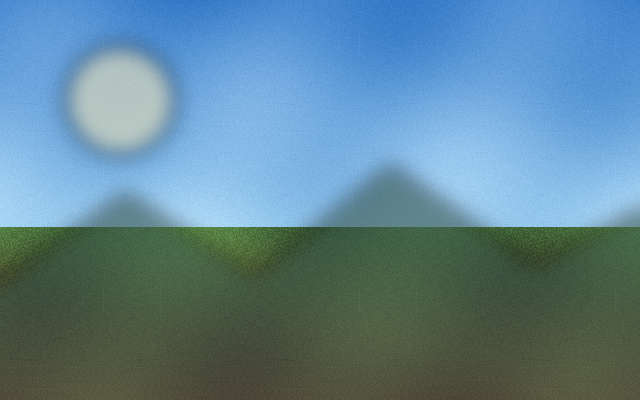
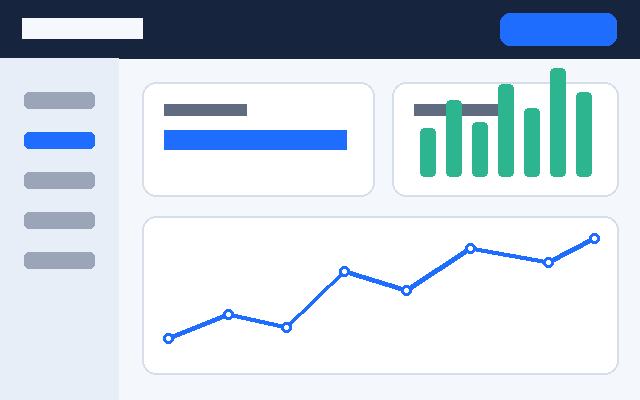
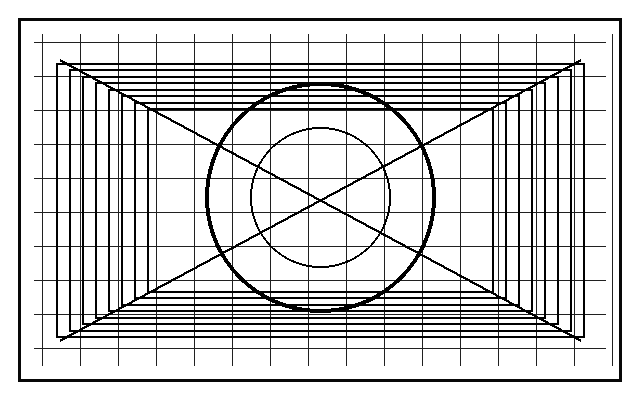
| Source | Original PNG | JPG | WebP | AVIF | Smart PNG |
|---|---|---|---|---|---|
| Photo-like | 318,778 | 28,376 | 15,500 | 36,315 | 139,581 |
| Flat interface | 3,515 | 19,310 | 1,474 | 2,417 | 2,562 |
| Line art | 6,819 | 60,810 | 2,428 | 3,181 | 4,016 |
The smart dispatcher chooses different settings for each format, so this is not an equal-quality codec ranking. In the photo-like case even the smart PNG changed RGB pixels through palette quantization. A PNG extension alone does not establish that an editing workflow preserved your pixels. An exact RGB match also does not establish identical metadata, transparency handling, or original file bytes. These sources have no alpha channel.
For the full settings, per-file hashes, pixel-error measurements, and reproducible environment, read the encoder reference or download its measurement JSON. These three synthetic images cover one size, not every photograph or screenshot. The reference tests the encoder directly; different tool settings, resized inputs, or future codec revisions can produce different files.
Set the byte limit correctly
Check the receiving form's file types, pixel requirements, and exact byte limit first. Some forms use decimal MB (1,000,000 bytes), while others use 1,048,576 bytes. IMAGEEE's current Target size field is labeled KB and multiplies the entered number by 1,024. Entering 1,000 therefore targets 1,024,000 bytes and can exceed a decimal 1 MB limit.
| Receiving limit | Enter in Target size | Target bytes |
|---|---|---|
| 500 KB = 500,000 bytes | 488 KB | 499,712 |
| 1 MB = 1,000,000 bytes | 976 KB | 999,424 |
| 2 MB = 2,000,000 bytes | 1,953 KB | 1,999,872 |
A requested target is not a guarantee. The encoder may be unable to meet it with the current dimensions and quality floor. If the result says Target size not reached, check the actual downloaded byte size, reduce dimensions if the destination allows it, and run again. Choose a lower target if the receiving service adds its own overhead or still rejects the file.
Resize when the destination needs fewer pixels
If a destination permits a 1,200-pixel long edge, a 4,000×3,000 source can become 1,200×900 without cropping. That changes 12,000,000 pixels to 1,080,000: 9% of the original pixel count. It does not promise a file that is 9% of the original byte size; encoding, texture, and metadata also matter. Keep the original dimensions for documents that need readable small text or when the receiver requires them.
- Use Resize to set the required dimensions while keeping the aspect ratio. Check small text and thin lines in the result.
- Use Send selected to tool to send that result to Compress. Select Target size and enter the budget for the receiving form.
- Download one result, inspect it at the intended display size and at 100% zoom, then upload it to the actual destination before processing the rest.
If the file still fails
- The byte size fits but the form rejects it: check the permitted extension, MIME type, dimensions, and whether the form accepts animation. Renaming an extension does not convert the file.
- JPG looks blurred or is larger: return to the original. Keep PNG or compare WebP if the receiver accepts it, especially for text and flat-color graphics.
- Transparent edges look wrong: JPG has no alpha channel. Choose and inspect the intended background in PNG to JPG, or keep a transparent output format.
- Only some batch files pass: check each output. The same settings do not produce the same byte size for different images.
Related pages: Compress, Resize, Convert, PDF Tools, Guides, Workflow Checklists.